



CAPTCHA (Completely Automated Public Turing Test) is a proven security mechanism designed to differentiate between human and automated inputs. In Magento 2, Admin CAPTCHA plays a vital role in safeguarding the backend from spam, brute-force login attempts, and bot-driven attacks.
Since the entire store management happens via the Magento 2 admin panel, enabling CAPTCHA ensures an extra layer of protection. However, there might be scenarios where you want to disable it temporarily (e.g., testing, smoother workflows, or conflicts with third-party extensions).
Now, adding admin CAPTCHA is extremely crucial in Magento 2 especially because the entire Magento 2 store management is done from the backend using the admin panel.
In this guide, we’ll cover:
-
What Magento 2 Admin CAPTCHA is
-
Key considerations before disabling it
-
Step-by-step methods to enable/disable Admin CAPTCHA via Admin Panel and CLI
-
Best practices to secure your Magento store
What is Admin CAPTCHA in Magento 2?
Admin CAPTCHA ensures that only legitimate users can log in to the Magento backend by presenting a challenge (symbols or reCAPTCHA) after a set number of failed attempts.
You can configure it to:
-
Display Always or after specific failed attempts
-
Define timeout limits
-
Set the number of symbols and case sensitivity
-
Choose different fonts and allowed characters
This makes it harder for bots to break in through brute-force login attacks.
Key Considerations Before Disabling CAPTCHA
While disabling Admin CAPTCHA may improve usability, you must weigh the security trade-offs:
-
Risk of Bot Attacks – Without CAPTCHA, bots can attempt unlimited login attempts.
-
Store Integrity – Sensitive data becomes vulnerable if login security is weakened.
-
Alternative Security Measures – If disabling, consider enabling:
-
Two-Factor Authentication (2FA)
-
Strong SSL/TLS encryption
-
IP whitelisting for the admin panel
-
Using secure hosting with firewalls
-
-
Login Thresholds – CAPTCHA helps control the number of failed login attempts before locking out bots.
-
User Experience – A balanced CAPTCHA timeout ensures security without frustrating admins.
Steps to Enable/Disable Admin CAPTCHA in Magento 2
Please follow the below steps to enable/disable admin CAPTCHA in your Magento 2 store.
Step 1 – Log in to the Magento Admin Panel
Log in to your Magento 2 Admin Panel.
Step 2 – Navigate to Configuration Settings
Go to Stores > Settings > Configuration.
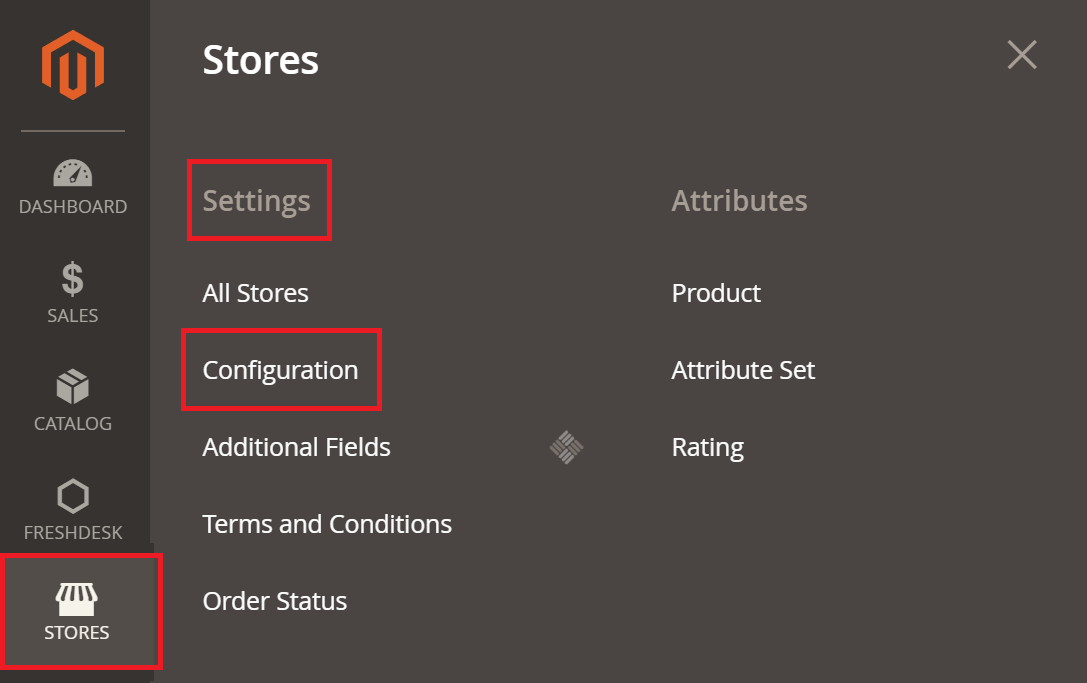
Step 3 – Open CAPTCHA Settings
From the left sidebar, click Advanced > Admin > CAPTCHA.
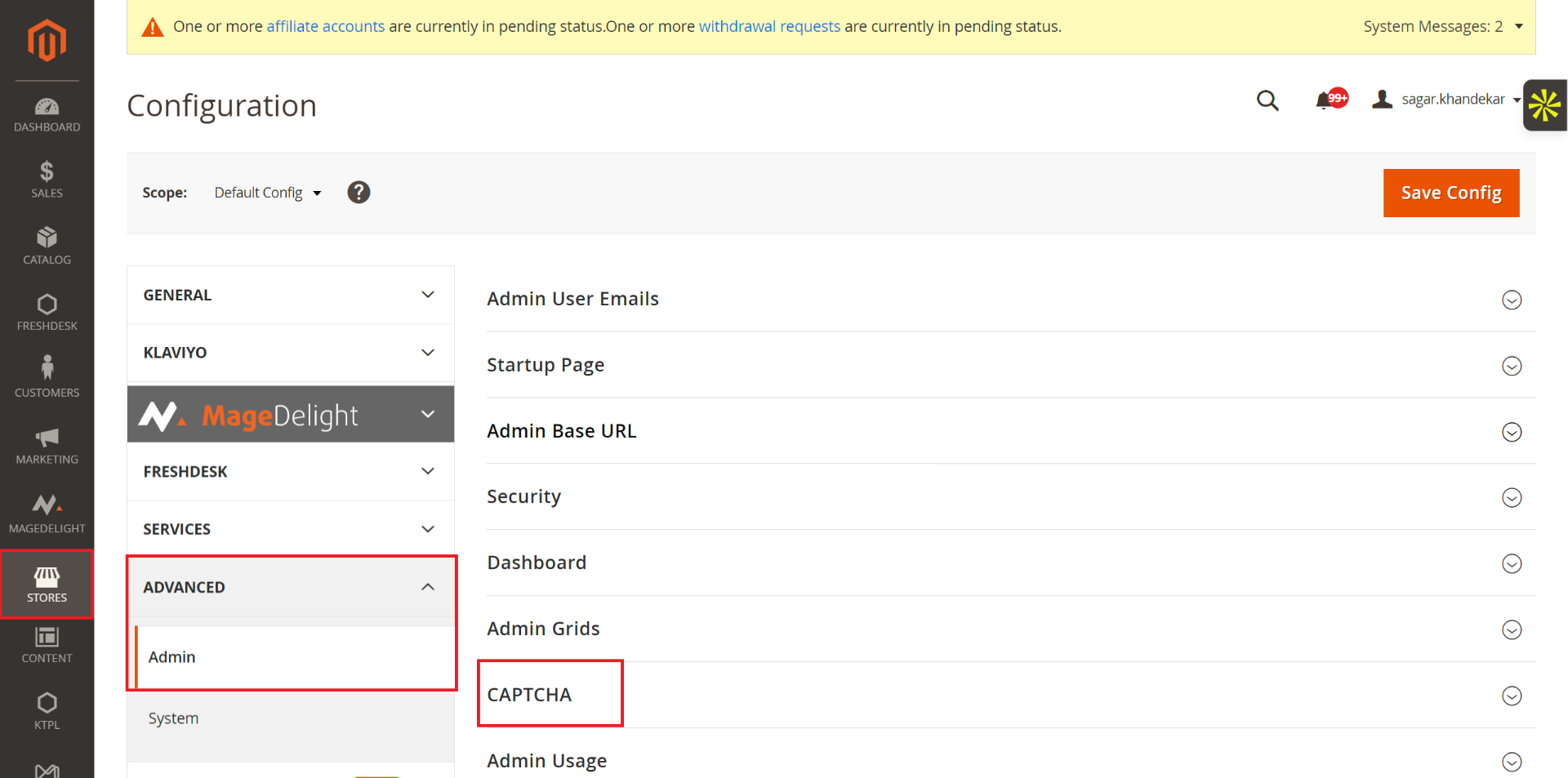
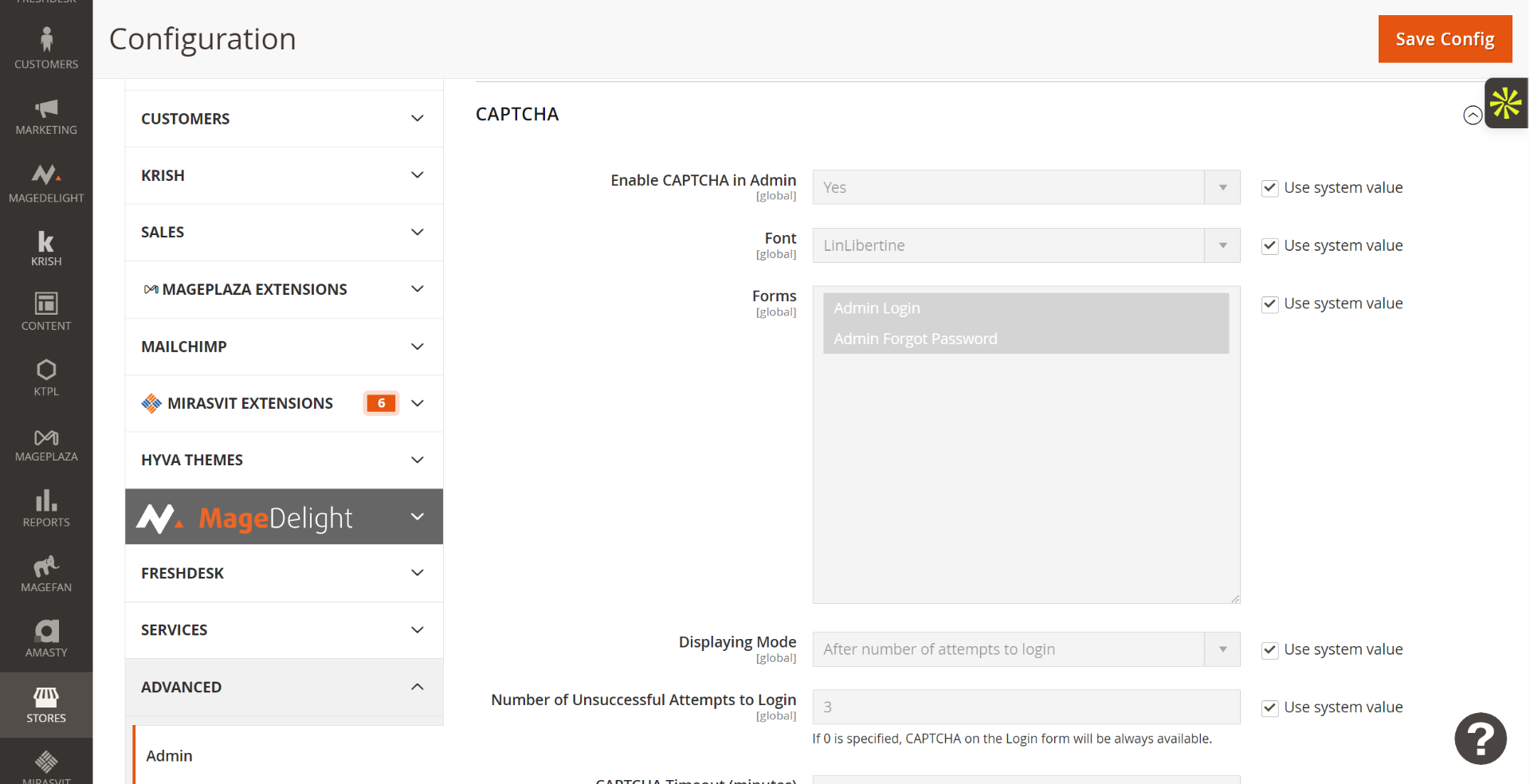
Step 4 – Configure CAPTCHA
-
Enable CAPTCHA in Admin → Yes/No
-
Font → Select font style
-
Forms → Choose “Admin Login”
-
Displaying Mode → Always OR After a number of attempts
-
Number of Unsuccessful Attempts → Define allowed attempts before CAPTCHA appears
-
CAPTCHA Timeout (Minutes) → Set expiration time
-
Number of Symbols → Define how many characters will display
-
Symbols Used in CAPTCHA → Define allowed characters (e.g., a-z, A-Z, 0-9)
-
Case Sensitive → Yes/No
Step 5 – Save Config
Click Save Config.
Step 6 – Flush Cache
Go to System > Cache Management and click Flush Magento Cache to apply changes.
Also read: How to Create New Admin User in Magento 2?
Method 2: Disable Admin CAPTCHA via Command Line (CLI)
If you prefer using the command line:
1. Access your server via SSH
ssh user@yourserver
2. Run the command to disable CAPTCHA
php bin/magento config:set admin/captcha/enable 0
3. Flush cache to apply changes
php bin/magento cache:flush
This method is faster and useful if you’re locked out of the admin panel.
Best Practices for Managing Magento 2 Security Without CAPTCHA
If you disable CAPTCHA, you should implement other measures to secure your store:
-
Enable Magento 2FA (Two-Factor Authentication)
-
Restrict admin access by IP whitelisting
-
Use reCAPTCHA v3 Invisible for smoother UX while keeping bots away
-
Regularly monitor login attempts in Magento logs
-
Keep your Magento version and extensions up to date
FAQs
Q1: Can I use Google reCAPTCHA instead of default Magento CAPTCHA?
Yes, Magento 2 supports Google reCAPTCHA v2, v2 Invisible, and v3 for both storefront and admin logins.
Q2: What happens if I disable CAPTCHA completely?
Your admin panel becomes more vulnerable to brute-force attacks. It’s recommended to replace it with 2FA or IP whitelisting.
Q3: Why is CAPTCHA showing after multiple failed login attempts?
Because you set the “Displaying Mode” to After Number of Attempts. You can change it to Always if you want CAPTCHA at every login.
Q4: How do I fix CAPTCHA not displaying in Magento 2?
Clear Magento cache and ensure that fonts and symbols are properly configured. If using Google reCAPTCHA, verify site and secret keys.
Conclusion
Enabling Admin CAPTCHA in Magento 2 provides essential protection against automated attacks, while disabling it may be necessary in specific scenarios. For best results, use CAPTCHA alongside other security layers like 2FA, SSL, and restricted admin access.
By following this guide, you now know how to enable/disable Admin CAPTCHA using both Admin Panel and CLI, along with best practices to maintain store security.
And if you need our professional assistance, feel free to contact us anytime.
