


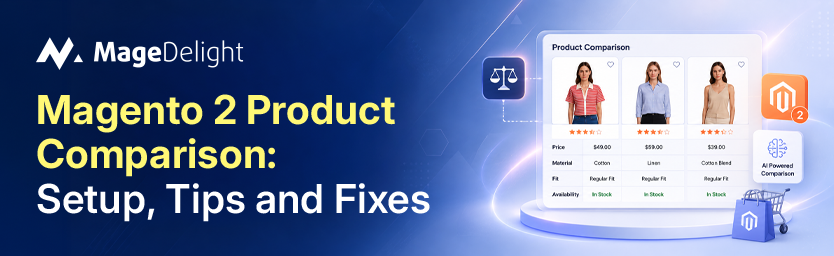
Around 83% of online shoppers compare product prices before making a purchase, according to Retail Times UK. On stores selling electronics, tools, appliances, or any item where specs actually differ, a product comparison feature is not a nice-to-have: it is the mechanism by which shoppers convince themselves to buy. Magento 2 ships with a built-in comparison tool. It is functional, free, and reasonably flexible. It is also rough around the edges in ways that matter.
The current release, Magento 2.4.8 (GA April 2025, latest patch 2.4.8-p4 released March 2026), introduced PHP 8.3 and 8.4 support. The core product comparison feature has not changed significantly since Magento 2.0, but the ecosystem of extensions around it has. This guide covers how the native feature works, how to configure it properly, its real limitations, how to disable it if your store does not need it, and when an extension is worth adding.
The honest answer is that the default compare feature is fine for stores with small, well-organised catalogs. If your products share consistent attributes and your shoppers are technically literate, it works. If your catalog is messy, your products vary in attribute structure, or your shoppers expect the fluency of Amazon's "Compare with similar items" experience, you will hit a wall fairly quickly. This guide tells you exactly where that wall is.
What Is Magento 2 Product Comparison?
Magento 2's Compare Products feature generates a side-by-side comparison table for products a shopper selects. Shoppers click "Add to Compare" on a product or category page. The products appear in a comparison block in the sidebar or header area. When the shopper clicks Compare, they see a structured table with product descriptions, attributes, prices, and customer ratings in one view.
The feature is part of Magento Open Source and has been available since Magento 2.0. It requires no separate installation and no additional licensing. On Adobe Commerce, the same feature is available and works identically at the core level, though Adobe Commerce adds related product rules and AI-powered product recommendations through its broader catalog management stack.
A comparison table reduces the friction of tab-switching. Instead of opening four browser tabs to compare laptop specs across product pages, a shopper can add all four to the compare list and read them in one view. For stores in electronics, B2B components, or any technical catalog, this matters. For fashion, food, or low-ticket accessories, it usually does not.
How Product Comparison Works on the Storefront?
Shoppers reach the comparison view through four paths, as documented in the Adobe Commerce admin guide:
From Catalog or Category Pages
- Browse any category or search results page.
- Click "Add to Compare" on each product.
- A Compare Products block appears in the sidebar listing the selected items.
- Click Compare to open the comparison table.
- Use the X icon to remove individual products or "Clear All" to reset.
From Notification Messages
After a shopper adds a product to the comparison list, a notification banner appears at the top of the page. Clicking the comparison list link in that notification goes straight to the comparison view.
From the Header Compare Link
Once at least one product is in the comparison list, a Compare Products link appears near the search field in the header. Clicking it opens the comparison list.
From the My Account Dashboard
Logged-in customers can navigate to My Account and access their Compare Products block directly. This is useful for shoppers who save items across sessions.
Comparison Page Actions
|
Action |
What It Does |
|
X (Delete icon) |
Removes a single product from the comparison list |
|
Add to Cart |
Adds the product to cart. Configurable products redirect to the product page to select options first. |
|
Wishlist icon |
Adds the product to the wishlist (requires wishlist functionality enabled in store configuration) |
|
Print This Page |
Prints the comparison table |
How to Configure Product Attributes for Comparison?
The comparison table displays only attributes you specifically mark as comparable. This is controlled at the attribute level, not through a global Compare Products setting. Here is the process:
Step 1: Navigate to the Attribute
- In the Magento 2 admin, go to Stores > Attributes > Product.
- Search for or click the attribute you want to include in comparisons.
Step 2: Enable Comparable on Storefront
- In the attribute edit screen, find the Storefront Properties section.
- Set Comparable on Storefront to Yes.
- Save the attribute.
As confirmed in Adobe's official attribute documentation, only attributes with Comparable on Storefront set to Yes will appear in the comparison table. Attributes set to No are hidden from the comparison view entirely.
This means you have real control over what the table shows. A good practice is to include attributes that differ meaningfully across your products. If every product in a category has the same warranty period, including warranty as a comparable attribute just adds visual noise without helping the shopper make a decision.
Practical Attribute Strategy
- Include technical specifications that distinguish products (processor speed, weight, capacity, material).
- Include price, as shoppers consistently cite price as the top comparison factor.
- Include customer rating if your store has meaningful review volume.
- Exclude attributes that are identical across most products in the category.
- Keep the total number of comparable attributes reasonable. A table with 30 rows is harder to read than one with 8 rows.
How to Set Up the Compare Products Block in the Sidebar?
The Compare Products block appears in the sidebar or header depending on your theme. In Magento's default Luma theme, the block appears in the left sidebar of catalog and category pages. You can control its placement through your theme's layout XML or through the admin widget system.
Adding the Block via Widget
- In the admin, go to Content > Elements > Widgets.
- Click Add Widget.
- Select Compare Products from the widget type dropdown.
- Assign it to the layout positions where you want it to appear.
- Save and clear the Magento cache.
Adding via Layout XML
For theme-level control, you can reference the compare block in your custom layout XML file:
| app/design/frontend/Vendor/Theme/Magento_Catalog/layout/catalog_category_view.xml |
This approach gives you control over which page types display the block, without modifying core files.
The Real Limitations of Magento 2's Default Comparison Feature
The native feature covers the basics. But if you spend time with it on a real catalog, a few problems show up fast.
No Admin Toggle to Disable It
There is no on/off switch in the Magento admin. If you want to remove the comparison feature from your store entirely, you need either an XML layout override, a free extension, or a template variable change. This trips up a lot of store owners who expect it to be in Stores > Configuration. It is not there. This has been documented as a known limitation since Magento 2.0.
Full Page Reload on "Add to Compare"
When a shopper clicks "Add to Compare," the default behavior triggers a full page reload. The product is added to the list, the page reloads, and the shopper is left to continue browsing from wherever they were. On a slow server or a large catalog page, this is a noticeable interruption. It also means the shopper loses their scroll position, which is frustrating on long category pages.
No Built-in Product Limit
The default implementation does not enforce a maximum number of products a shopper can add to the comparison list. In theory, a shopper could add dozens of products. In practice, a comparison table with 10 products is unreadable on any screen. The native feature gives you no admin setting to cap this number.
Empty Attribute Values Break the Layout
This is a documented issue. If a product has an empty value for a comparable attribute, the comparison page can render incorrectly. Adobe's knowledge base documents this specifically for the 2.3.5 release, and the underlying logic still requires that comparable attribute values be non-empty across all products in a comparison. The workaround is to ensure every comparable attribute has a default store view value set, but this requires ongoing attribute management discipline.
No AJAX-Driven Comparison Tray
The native implementation has no persistent comparison tray at the bottom of the page (the way Amazon's comparison feature shows selected products as you browse). Shoppers have to navigate to a separate comparison page to see their selections side by side. For high-consideration purchases where shoppers want to browse and compare simultaneously, this is a real friction point.
Limited Theming and Customisation Without Code
Changing the appearance of the comparison table, the Add to Compare button text, or the comparison block layout requires theme overrides. There is no admin UI for visual customisation. For merchant teams without developer access, this means the comparison feature looks like every other Luma-derived store.
Default Compare vs. Third-Party Extensions: Quick Comparison
|
Feature |
Native Magento 2 |
FME Smart Compare |
BSS Disable Compare |
|
AJAX add to compare (no page reload) |
No |
Yes |
N/A |
|
Admin toggle to disable |
No |
No |
Yes |
|
Max product limit in compare list |
No |
Yes |
N/A |
|
Comparison tray on the page |
No |
Yes |
N/A |
|
Customisable button text |
Requires code |
Yes (admin) |
N/A |
|
Popup colour customisation |
Requires code |
Yes (admin) |
N/A |
|
Compatible with Magento 2.4 current |
Yes |
Yes (2.4.8-p3) |
Yes (2.4 current) |
|
Price |
Free (built-in) |
Paid extension |
Free |
How to Disable Product Comparison in Magento 2?
Some stores do not need comparison at all. Fashion stores, food retailers, and single-product stores are obvious cases. Because there is no admin toggle, you have three practical options:
Option 1: XML Layout Override (Cleanest Approach)
Create a layout XML file in your theme to remove all compare-related blocks. This requires no extension and does not touch core files:
| app/design/frontend/Vendor/Theme/Magento_Catalog/layout/default.xml |
Add the following block references to your layout file:
- catalog.compare.sidebar
- catalog.compare.link
- category.product.addto.compare
- catalogsearch.product.addto.compare
- view.addto.compare
- related.product.addto.compare
- upsell.product.addto.compare
- wishlist.product.addto.compare
Each block reference should use remove="true". After making changes, run:
| php bin/magento cache:clean && php bin/magento cache:flush |
Option 2: Free Extension
The Disable Compare extension by CodeDecorator is available free on the Adobe Commerce Marketplace. It provides a simple admin toggle and does not modify core code. BSS Commerce offers a similar free option with a Yes/No admin switch. These are good choices for store owners without development resources.
Option 3: Template Variable Override
For page-level control (disable comparison on category pages but keep it on product pages, for example), override the $showCompare variable in the relevant template files:
- Magento/Catalog/view/frontend/templates/product/widget/new/content/new_grid.phtml
- Magento/Catalog/view/frontend/templates/product/widget/new/content/new_list.phtml
Set $showCompare = false in the overridden template. Copy the template to your theme directory first; do not edit core files directly.
Configuring Recently Viewed and Compared Products
Magento includes a separate Recently Viewed / Compared Products widget that you can configure in the admin. This widget does have settings, unlike the core Compare Products feature:
- Go to Stores > Settings > Configuration.
- In the left panel, expand Catalog and choose Catalog.
- Find the Recently Viewed/Compared Products section.
- Set Synchronize widget products with backend storage to sync product widget data across devices.
- Use Show for Current to control whether the widget applies to a website, store, or store view.
- Set Default Recently Compared Products Count to control how many previously compared products appear.
Best Practices for Product Comparison Pages
A well-implemented comparison table is a conversion tool, not just a feature. A few things make the difference:
Surface the Most Differentiating Attributes
List the attributes where your products actually differ. A comparison table where every row shows the same value is useless. If your three laptops have different processors, RAM, and storage but the same warranty and screen resolution, show the first three prominently and consider whether the last two are worth the table space.
Make "Add to Cart" Prominent on the Comparison Page
The comparison page should close the loop. An "Add to Cart" button directly in the comparison table (which Magento includes natively) keeps the shopper from having to navigate back to the product page. Make sure the button styling on the comparison page matches your store's primary action style and is not de-emphasised by surrounding content.
Limit the Number of Comparable Products
Two to four products is the usable range for most screens. A comparison table with six or more products becomes a horizontal scroll nightmare on mobile. If you use a third-party extension, set the compare limit to four. If you are using the native feature, consider adding a brief note on the sidebar block encouraging shoppers to compare two or three products at a time.
Keep Attribute Values Consistent and Non-Empty
Empty attribute values break the comparison layout on some Magento 2 versions. Beyond the technical issue, inconsistent attributes produce a confusing comparison table. If 90% of your products have a weight attribute but 10% do not, the comparison table for mixed selections will have gaps. Run a periodic audit of your comparable attributes and set meaningful default values for any product missing them.
Test Across Mobile Viewports
The default Magento 2 comparison table does not handle narrow screens gracefully. If a significant portion of your traffic is mobile (industry benchmarks from Shopify's 2026 CRO research suggest mobile convert at 1.5-2% vs 3.5-4% for desktop, partly due to UX friction), your comparison table needs to be tested at 375px and 414px widths. Horizontal scrolling on a comparison table is a common reason shoppers abandon the feature.
When to Consider a Third-Party Compare Extension?
The native feature covers the fundamentals. You need an extension if any of the following are true:
- Your shoppers are regularly adding more than three products to the comparison list and the table becomes unreadable.
- Page reload on "Add to Compare" is causing measurable bounce or session abandonment on your category pages.
- Your merchandising team wants to control compare button text or colours without touching code.
- You want a persistent comparison tray at the bottom of category pages so shoppers can see their selections as they browse.
- You need to completely disable comparison for specific store views or categories.
The FME Smart Compare extension (available on Adobe Commerce Marketplace) addresses the most common pain points: AJAX-based add to compare (no page reload), a comparison tray at the bottom of the page, a configurable product limit, and admin-level customisation of button text and popup colours. It is compatible with Adobe Commerce 2.4.8-p3 (current). For stores that want to remove the feature entirely with no code changes, CodeDecorator's free Disable Compare extension is a straightforward solution.
For broader store UX improvements, MageDelight offers a range of Magento 2 extensions covering catalog, checkout, and marketing functionality, including a Frequently Viewed Together extension that complements comparison by surfacing related products shoppers commonly view together.
Does Your Store Actually Need Product Comparison?
The honest answer is: it depends on your catalog type, not your store size. Here is a practical breakdown:
|
Store Type |
Comparison Feature Value |
Recommendation |
|
Electronics / Tech |
High: specs differ meaningfully |
Enable and configure well |
|
B2B / Industrial Components |
High: compatibility and spec accuracy is critical |
Enable; consider AJAX extension |
|
Furniture / Home Goods |
Moderate: dimensions and materials matter |
Enable with curated attribute set |
|
Fashion / Apparel |
Low: visual and fit are primary, not specs |
Disable; focus on product imagery |
|
Food / Grocery |
Low: purchase decisions are habitual |
Disable; use up-sell/cross-sell instead |
|
Software / Subscriptions |
High: feature-level differences drive decisions |
Build a custom comparison landing page |
Frequently Asked Questions
Here are the common faqs.
1. How Do I Add a Product to the Comparison List in Magento 2?
Click the "Add to Compare" link on any product or category page. The product will appear in the Compare Products block in the sidebar. Once you have added two or more products, click the Compare button to view the full comparison table.
2. Can I Control Which Attributes Appear in the Magento 2 Comparison Table?
Yes. Go to Stores > Attributes > Product in the admin, edit any attribute, and set Comparable on Storefront to Yes. Only attributes with this setting enabled will appear in the comparison table. As confirmed by the Adobe Commerce documentation, this is the only way to control which fields appear.
3. Is There an Admin Setting to Disable Product Comparison in Magento 2?
No. The default Magento 2 admin does not include a toggle to disable Compare Products. To remove the feature, you need to use an XML layout override, a free extension such as the CodeDecorator Disable Compare extension, or template variable overrides for specific pages.
4. Why is My Magento 2 Comparison Page Showing a Corrupted Layout?
The most common cause is empty values for comparable attributes on one or more products in the comparison. If a product has no value for an attribute marked as Comparable on Storefront, the comparison table can break. The fix is to ensure all comparable attributes have non-empty values on all products. This issue is documented specifically for Adobe Commerce 2.3.5 in Adobe's knowledge base, but the underlying attribute validation requirement applies across versions.
5. How Many Products Can Be Compared at Once in Magento 2?
The default implementation does not enforce a maximum. Shoppers can technically add as many products as they want, though the comparison table becomes unusable with more than four or five. If you want to enforce a limit, you need a third-party extension such as FME Smart Compare, which includes an admin-configurable maximum and displays a popup if shoppers try to exceed it.
6. Does Product Comparison Work With Hyva Theme?
The default Magento 2 compare block is Luma-based and requires theme-level adaptation for Hyva. If you are running Hyva, check whether your extension provider offers Hyva-compatible versions. MageDelight maintains a catalog of Hyva-compatible Magento 2 extensions that you can check before purchasing any catalog or UX extension.
Final Thoughts
Product comparison in Magento 2 is a feature that either earns its place or quietly sits unused, depending entirely on your catalog type. For electronics, B2B components, and technical products, a well-configured comparison table is one of the most direct paths to a confident purchase decision. For fashion and food, it is noise.
The native feature is good enough for stores with clean catalogs, consistent attribute data, and shoppers who already know how to use it. The page-reload problem is the most frequent complaint, and it is a real one. If your category pages are busy and your products are similar enough that shoppers want to compare three or four at a time while browsing, the AJAX-based approach from a third-party extension is worth the cost.
The configuration overhead is low. Mark your attributes, check your mobile rendering, make sure no comparable attribute has empty values across your catalog, and the feature will do its job. The investment is in getting the attribute strategy right, not the technical setup.
