


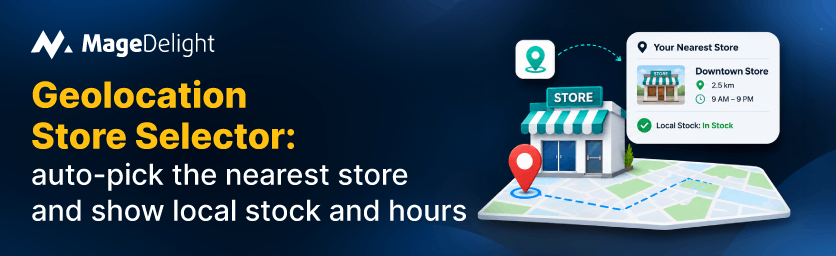
Almost 75% of US adults (73.5%) at least sometimes check prices or stock levels online prior to going into a store (Locala and EMARKETER survey). The shopper has already decided your site is the one they go to to check whether the product is actually in stock. The issue then becomes whether your site can answer that question.
For most multi-location Magento stores, it simply won't cut it. Magento's Inventory Management will track stock in each warehouse and store as a separate source. By default, the storefront sells from a stock total across all those sources, so the customer sees one answer for the whole network rather than what is actually available in their local area.
A geolocation store selector closes that gap. This guide covers what it is, how it determines the nearest store, what the customer sees, how you set it up, and where it can fall down. The example we're using is MageDelight's Store Selector with Pickup, Locator & MSI.
The short version
• A geolocation store selector will determine where the shopper is, pick the nearest store and display that store's stock, address and opening hours.
• It works on top of Magento's Multi-Source Inventory (MSI) - each MSI source becomes a store that the shopper can choose to order from or pick up from.
• Shoppers who have opted out of location access are still able to do a manual search by zip code or city, so again nobody is left high and dry.
• It's most useful for stores that have an online presence and hold their inventory in a number of physical locations.
What is a geolocation store selector?
A geolocation store selector is a storefront feature that determines the shopper's location, selects the nearest store, and then displays that store's local stock, address, and hours. The shopper can of course switch to another store if they wish. It links the browsing, availability and pickup to one location rather than one global stock figure.
How does it pick the nearest store?
The process has four moving parts. There's absolutely no need for the shopper to type anything at all.
1. The visitor lands on your store. The extension uses browser-based geolocation to detect the visitor's location on page load, as its FAQ explains.
2. The browser will ask for permission. That's a browser rule, not a store setting. Per the MDN documentation, the Geolocation API only works over HTTPS, and the user must approve the prompt before any location is shared.
3. The location is matched to your stores. The extension will compare the location against the MSI sources you've configured. Each source (a warehouse, a store or a dark store) is treated as a separate pickup location in accordance with the MSI support FAQ.
4. The nearest store is 'My Store'. Stock for that store is displayed on the category and product pages. The shopper can change the store at any time from either a list or a map.
If the customer denies location access, we can fall back to a manual store search by zip code or city. That fallback is important, as many people will simply tap 'Block' out of habit.
What do shoppers actually see?
This is what changes the experience. Based on the extension's user manual, here is what appears and where.
|
Where |
What the shopper sees |
|
Header |
A "My Store" button that opens a list of nearby stores with name, address and operating hours, plus a search bar. A "Set as My Store" button saves the choice and a "Reset" button clears it. |
|
Category page |
Labels such as "In Stock at Store" or "Out of Stock at Store", pickup availability labels, and a "Store is Closed" label when the store is shut. You write the wording. |
|
Product page |
A label showing stock and available quantity at the chosen store, with a "Check Other Stores" link that lists nearby stores and their hours. |
|
Store details page |
Store information and a Google Map that gives a route and distance from the shopper's location. |
|
Cart and checkout |
"Store Pickup" as the shipping method, with the chosen store named. All items in one order must use the same pickup store. |
Why local stock and hours matter to a sale
Local availability is a buying signal, not a nice-to-have. 51% of US online adults (Forrester) say they like to check online to confirm that the local store will have the item they're after. If the page can't answer the question, they'll go to a competitor or call the store.
Hours matter for the same reason. A pickup promise is only useful if the shopper knows the store is open when they get there. A "Store is Closed" label on the category pages stops the wasted trip and the subsequent angry review.
There's also a support benefit. If the site tells you which store has the item, you'll get far fewer "do you have this in stock?" emails and calls to your team.
What Magento MSI does, and where the gap is
Adobe's Inventory Management documentation defines a source as a physical location where products are stored and shipped (i.e. a warehouse or a brick-and-mortar store). Stocks map a sales channel to those sources, and the salable quantity is then the sum of the quantities across all sources that have been assigned to that stock.
That design is ideal for selling; it's not really built for answering "what does my nearest store have?" Adobe lets you mark a source as a pickup location and add a front-end description (which the docs say can include store hours). It doesn't detect your location, pick the nearest store for you or show per-store stock labels on the category and product pages. That's what an extension provides.
The extension is built on top of the native MSI framework so your existing sources, quantities and pickup settings remain the single source of truth. It doesn't replace inventory management; it just brings it to the fore.
How to set it up in Magento 2
Prerequisites
• Magento Open Source / Adobe Commerce / Adobe Commerce Cloud 2.4.x with MSI enabled.
• One MSI per store or warehouse that you want the shopper to see, with accurate quantities.
• HTTPS on the storefront, as browsers won't share location otherwise.
• MageDelight's Base extension, which the manual lists as a requirement. The extension is also Hyvä-ready at no extra cost if you run that theme.
Step by step
1. Create or verify your sources. In the Magento admin, make sure each store has its own source. Adobe note that the Default Source cannot be used as a pickup location.
2. Install the extension. Back up your files and database first, install the Base extension, unpack the module and then run the normal setup commands (upgrade, compile, static content deploy and cache clean).
3. Enable the geolocator. Turn 'Enable Geolocator' on in the extension's settings.
4. Add your stores. Head to Magedelight, then Store Locator/Pickup, then Manage Store and add each store in turn. Select its store view, assign a URL key to its detail page, link it to the appropriate MSI source and switch 'Use as Pickup Location' on so that customers can collect from it.
5. Write the labels. For "In Stock at Store", "Out of Stock at Store", pickup available or not, and "Store is Closed", use clear, simple wording. Keep it short, as these labels will appear on the product card.
6. Test as a shopper. Do it with location allowed, with location blocked and on a phone. Make sure the manual search works and that a cart containing items from two stores is handled correctly for pickup.
The manual and the extension FAQ cover each screen in more detail.
Common mistakes
• Stale source quantities. What you see on the storefront is exactly what your sources say. If the numbers are wrong in Magento, they'll be wrong on the page.
• No HTTPS. The browser won't hand over location in that case, and all visitors fall back to manual search.
• Mixed store carts. If you have products from different stores in one order, Store Pickup isn't an option. Make this very clear to the shopper; otherwise, they'll think checkout has failed.
• Vague labels. "Available" doesn't tell you where. Name the store in the label.
• Hide the manual option. Always keep the store list and search visible so the shopper can manually override the auto pick.
What it cannot do
No tool is magic, so here are the real limitations. Auto-detection is only possible if the shopper agrees to share their location, and some won't. The nearest store is only as good as the location the browser reports. One order can only use one pickup store. And every figure shown is only as accurate as your inventory data, so a store that doesn't update its stock will still mislead shoppers.
Who should use it, and who should pick something simpler?
• Multi-store retailers selling online (with stock in multiple locations) use this extension. It gives you nearest store detection, per-store stock and pickup all in one setup.
• Stores that just want people to be able to find them on a map: a store locator is sufficient.
• Stores that offer click and collect but don't give a damn about geolocation or per-store stock levels. MageDelight's Store Pickup extension is the more basic option in that respect.
• One warehouse, no physical stores: If you're in the first group, then start with Store Selector with Pickup, Locator & MSI. The MageDelight team can assist with the setup, or with customising the store labels and flows to match your catalog. flows to match your catalog.
Frequently asked questions
Does a Magento 2 store selector detect the customer's location automatically?
Yes. It uses browser-based geolocation on page load and matches the position to your MSI sources. The browser asks the shopper for permission first, and the site must use HTTPS.
What happens if a customer blocks location access?
They can search for a store by zip code or city, or pick one from the store list. The selector keeps working; it just does not choose the store for them.
Does it work with Magento Multi-Source Inventory?
Yes. It is built around native MSI, and each source, whether a warehouse, store or dark store, is treated as a separate pickup location. Your existing source quantities drive what shoppers see.
Can shoppers pick up an order at the nearest store?
Yes. Store Pickup appears as a shipping method in the cart, with the chosen store name shown. All items in one order must use the same pickup store, or the method is disabled.
Does it show store opening hours?
Yes. The nearby store list and the product page's "Check Other Stores" list show operating hours, and a "Store is Closed" label can appear on category pages when a store is closed.
