


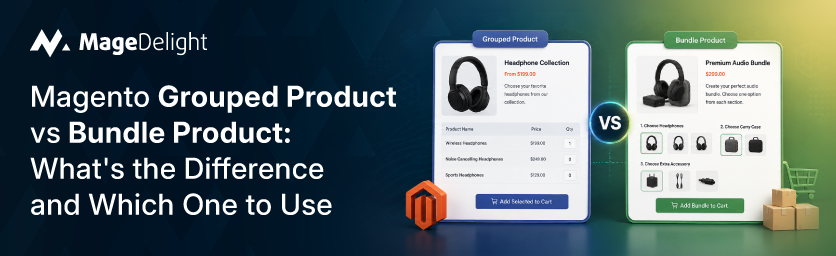
Adobes documentation settles a question most Magento guides get wrong: a grouped products children can be simple, downloadable or virtual but only without custom options while a bundles children are restricted to simple and virtual products and can never include a downloadable item. That single restriction, buried in the product-type docs decides more real-world catalog decisions than any comparison table alone.
Grouped and bundle products both let you sell than one item as a single catalog entry and both feel similar the first time you open the admin panel.. They solve different merchandising problems price differently and behave differently in the cart. Picking the one early means rebuilding product data later which is exactly the kind of catalog rework nobody wants to schedule.
This guide breaks down the technical differences using Magentos own documentation walks through native setup steps for each and covers where custom options and promotional bundling extensions fit into the decision.
The Core Difference in One Paragraph
A grouped product is a presentation layer. It shows independent simple products together on one page but every item keeps its own SKU, price and stock and each one becomes its own separate line when added to the cart. A bundle product is a SKU. It combines virtual products into one configurable kit that customers build by selecting options and it checks out as a single line item with one calculated price. Grouped respects that customers might only want one item from the set. Bundle assumes the set is the product.
Comparison Table
|
Category |
Grouped Product |
Bundle Product |
|
Parent-level price |
None; derived entirely from child products |
Yes; fixed or dynamic pricing model |
|
Allowed child types |
Simple, downloadable, virtual (no custom options) |
Simple, virtual only |
|
Cart display |
Each child is displayed as a separate line item |
Single line item with expandable options |
|
Customer can skip items |
Yes; set quantity to zero |
No; required options must be selected |
|
Customization per item |
Quantity |
Size, color, SKU, quantity, component choice |
|
Stock tracking |
Per child product only |
Kit level or component level |
What is a Grouped Product in Magento?
According to Adobes Commerce documentation a grouped product consists of standalone products presented as a group and although they display together each product in the group is purchased as a separate item appearing as its own line in the shopping cart. The classic example in Adobes docs is open-stock flatware: list every utensil type used in a formal place setting and let one customer order a full set while another orders just a fork, a knife and a spoon.
The parent grouped product itself carries no price. It is a wrapper that controls listing order, category placement and SEO fields while every dollar amount, every stock count and every SKU lives on the child products. Only simple, downloadable and virtual products with no options can be added as children. Configurable and bundle products never appear in the group product picker all.
What is a Bundle Product in Magento?
A bundle product presents a selection of items. Lets customers choose the ones they want to purchase with every item in the bundle existing in the catalog as either a simple product or a virtual product according to Adobes own import documentation. That last restriction matters more than most guides admit: if part of your kit is a file license key or digital asset it cannot be a bundle child. It has to become a grouped product or the digital item has to be handled outside the bundle entirely.
Inside a bundle customers configure options, size, color, SKU and quantity than simply picking items to include. A computer store selling a "build your PC" kit with processor, RAM, storage and monitor choices is the textbook bundle use case: every combination produces a specific priced configuration and the customer cannot walk away with just the processor.
Pricing: How Each Type Actually Calculates Cost
Grouped product pricing has no group-level override. The price shown is always the sum of whatever the customer selects from the children and any discounting has to happen at the individual product level through catalog price rules or special prices.
Bundle products support two pricing models. Fixed pricing puts one price on the bundle regardless of which options a customer picks, which works well for a curated kit sold at a set price point. Dynamic pricing calculates the total from the sum of selected components, which fits a build-your-own configuration where the price should genuinely change based on whats inside. Adobes documentation confirms both models a fixed bundle carries its own catalog price while a dynamic bundle has no price of its own and calculates from the items selected inside it.
If what you actually need is per-item customization on a product rather than a full second SKU structure that's a different tool entirely. MageDelights Advanced Custom Option extension adds custom option variations to a simple product complete with CSV import and templating without forcing that product into a bundle structure it doesn't need.
Cart and Checkout Behavior
Grouped products show up in the cart the way they show up on the page: as separate line items, each with its own price, quantity and remove button. This gives customers an itemized view and makes partial refunds or exchanges straightforward since every line traces back to one specific SKU.
Bundle products collapse into a cart line. A dropdown or expand control reveals the selected components underneath which keeps the cart simple but means any adjustment to the bundle usually means removing it and reconfiguring from the product page rather than editing a line directly.
How to Create a Grouped Product (Native Steps)
Setting up a grouped product in the admin follows a fixed sequence, based on Adobe Commerce's official grouped product documentation.
Step 1: Choose the product type
Go to Catalog > Products open the Add Product menu and select Grouped Product.
Step 2: Choose the attribute set
Pick the template that matches the attributes this product needs. Add a new attribute if nothing existing fits.
Step 3: Complete the required settings
Enter the product name and accept or edit the SKU. There is no quantity field and no price field to fill in since both are derived entirely from the children you add later.
Step 4: Complete the settings
Set stock status assign categories and confirm visibility settings as you would for any other product.
Step 5: Add products to the group
Scroll to the Grouped Products section click Add Products to Group. Select every simple, downloadable or virtual product you want to include. Only products without custom options appear in this picker. Set a default quantity for each child if you want the group to feel pre-curated than empty by default and drag items into the order you want them displayed.
Step 6: Publish
Set Enable Product to Yes and save.
How to Create a Bundle Product (Native Steps)
The bundle workflow follows the general shape but with a meaningfully different core: the pricing model decision has to happen early and every child must already exist as a simple or virtual product before you start building the bundle around them.
Step 1: Create the component products first
Verify every virtual product you want inside the bundle already exists in the catalog since Adobes own tutorial explicitly recommends creating them before you start the bundle itself.
Step 2: Choose the product type. Set the pricing model
From Catalog > Products > Add Product > Bundle Product decide whether Dynamic Price is Yes or No early since this changes how the rest of the product behaves. Fixed pricing needs one number set on the parent. Dynamic pricing needs nothing set on the parent all since the total is calculated from selections.
Step 3: Build the bundle options
Add option groups (Processor, RAM, Storage and so on for a build-your-own example). Within each group add the specific simple or virtual products that qualify as choices.
Step 4: Set selection rules per option group
Decide whether each group is required or optional and whether customers can select one item or multiple which's what actually produces the "customer cannot skip a required component" behavior that separates bundles from grouped products.
Step 5: Publish
Set Enable Product to Yes and save then verify the storefront renders every option group before going live.
When to Use Grouped vs Bundle vs Custom Options?
Use grouped products when items genuinely sell independently but make sense to show together: a skincare routine where customers pick their combination replacement parts, for one appliance model or a book series where readers may already own some volumes.
Use bundle products when the parts only make sense as an unit and the price should show the choices: a build-your-own computer, a gift hamper with size and flavor choices or a service package with add-on tiers.
Use custom options, not a product type at all when you're not really combining separate products but adding configuration to one: engraving text, a gift message or a dropdown of finishes on a single SKU.
If your actual goal is running a buy these together and save" offer rather than restructuring your catalog into new product types that's a fourth path. MageDelights Product Bundled Discount extension layers. Flexible promotional bundles with combo pricing on top of your existing catalog, which is often a faster fix than converting simple products into a native Magento bundle just to run a limited-time offer.
Common Mistakes to Avoid
Merchants trying to put a product inside a bundle hit a wall Adobes documentation states plainly: bundle children are limited to simple and virtual products. If part of your kit is a license key or digital file the whole product needs to be modeled as grouped instead or the digital component needs to sit outside the bundle.
Setting a price directly on a grouped parent is another mistake. The admin form will accept a number in that field. The storefront ignores it entirely and always shows the sum of child prices, which creates a confusing gap between what the admin panel implies and what customers actually see.
Trying to add products as grouped or bundle children doesn't work either. Both types only accept simple, virtual or (for grouped downloadable products. If the real requirement is "these three configurable products belong on one page " the fix is crossselling or related products not forcing configurables into a group they were never built to hold.
Finally retailers sometimes build a bundle product just to run a temporary discount campaign then have to unwind that catalog structure once the promotion ends. If the goal is genuinely temporary a promotional extension is usually the lighter-weight fix.
FAQs
Here are answers to the questions merchants ask most often when choosing between grouped and bundle products.
Can a Bundle Product Include an Item?
No. Bundle items exist in the catalog as simple or virtual products. Downloadable products can only be added as children of a grouped product.
Does a Grouped Product Have Its Price?
No. A grouped product has no parent-level price in the catalog. The price customers see is always derived from whichever child products they select.
Can Customers Skip Items in a Bundle the Way They Can in a Grouped Product?
Only if that option group is marked optional during setup. Required option groups must have a selection made before checkout unlike grouped products where every item can be set to zero quantity.
Which Type Supports Fixed and Dynamic Pricing?
Bundle products only. Fixed pricing sets one price for the bundle regardless of selections. Dynamic pricing calculates the total from whichever components the customer picks.
Can I Use Custom Options of Either Product Type?
Yes. Often you should. If you're adding configuration to a product rather than combining multiple separate products custom options are the lighter-weight tool.
Final Recommendation
If your products genuinely sell on their own and you just want to display them for convenience a grouped product is the right call and it costs nothing extra to set up since its fully native to Magento.
If the components only make sense as one purchase and the price needs to reflect what the customer picks build a bundle. Decide on fixed or dynamic pricing before you start adding options since that choice shapes the entire setup.
If. Fits and you're really just adding configuration to one product skip both composite types and reach for custom options instead extended with MageDelights Advanced Custom Option extension if you need unlimited variations or CSV-based bulk setup. And if the actual goal is a time "buy together and save" promotion rather, than a permanent catalog restructure MageDelights Product Bundled Discount extension solves that without touching your underlying product types at all.
